Signature feature
Show the client their own door, finished.
Upload a photo of the door. Rundown renders the hardware from the estimate onto it and numbers every component. The proposal shows what they are buying, where it goes and what each piece costs.
Included on Pro and Business. Uses the plan's AI budget.
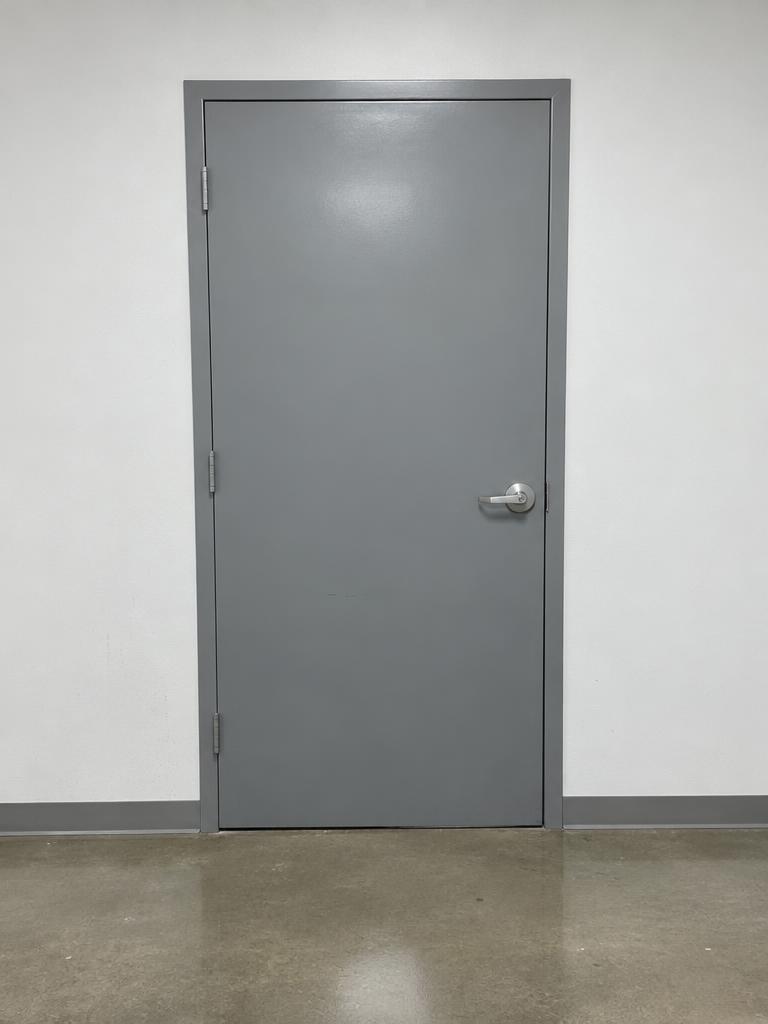
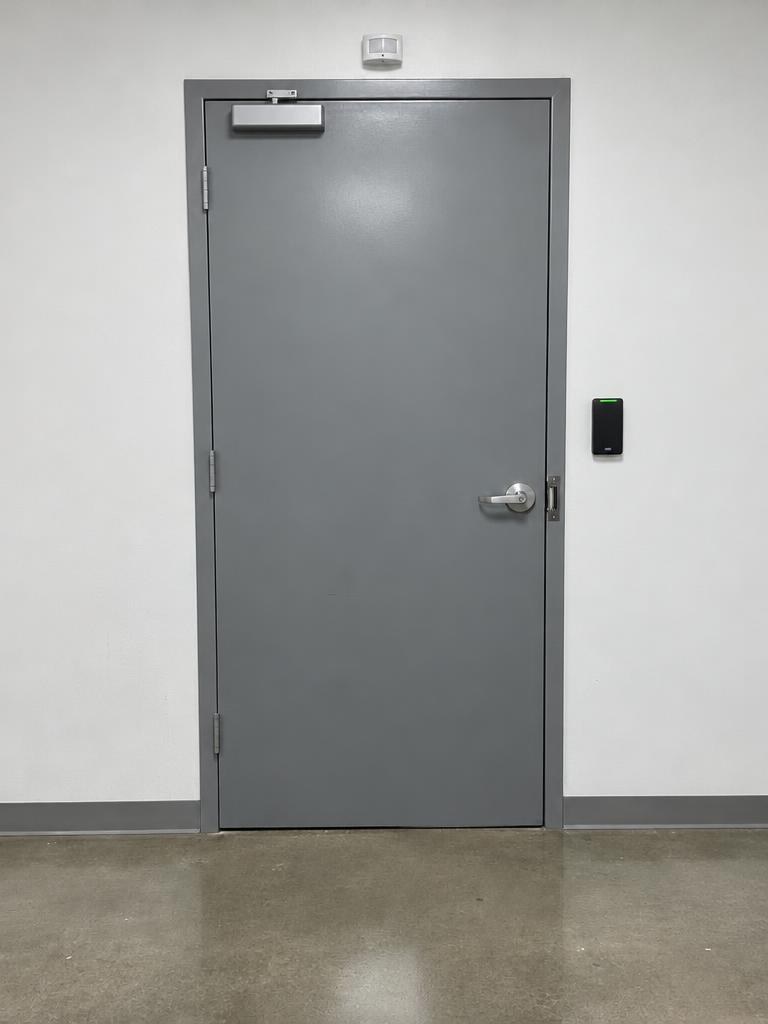
~30 s
from photo to labeled render
Every part
numbered, named and priced
One picture
on the proposal, the job and the as-built
How it works
Four steps. The first one is a photo.
- 1
Take the photo
Any phone photo of the door, straight on, in normal light. The office can upload it, paste it, or take it on site.
- 2
Pick the opening
Choose the door or line group. Its product lines become the component list: reader, strike, REX, closer and the rest.
- 3
Render and label
GPT Image 2.5 edits the photo and keeps the door, frame and lighting. Claude then finds each component and places a numbered callout.
- 4
Approve and send
You check it first. Move a callout, add a caption, or hide it. Then it is live on the proposal and printed in the PDF.
What you get
Built in, not bolted on.
Visualizer shares the same openings, estimates and price book as the rest of Rundown, so nothing is retyped.
- 01
Interactive callouts
Each number opens a card with the product name, quantity, price when prices are shown, and lead time.
- 02
Before and after
A slider the client can drag across their own door. The original photo is always one swipe away.
- 03
Honest about what is hidden
Power supplies, controllers, cable and labor are listed under Also included, not drawn into the picture.
- 04
Office controls
Retry with notes such as the reader goes on the other wall. Drag a callout to the right spot. Toggle visibility per render.
- 05
PDF twin
The proposal PDF gets a page per render with the same numbers and legend, so the printed copy matches the link.
- 06
Carried forward
The render sits on the opening record and the Door Passport, so the tech and the facility manager see the same picture.
On the proposal
A proposal that explains itself.
A facility manager rarely knows what a request-to-exit sensor is. Now they tap the number above the door and read it. Questions that used to take a site visit are answered on the page, and the approval comes sooner.
- Tap a callout to highlight its line in the pricing table
- Prices and lead times follow your portal settings
- Works on a phone, which is where proposals get opened
In the office
You stay in control of the picture.
Nothing is shown to a client until a person has looked at it. Renders are marked as visualizations, positions are approximate by design, and the installer still follows the hardware schedule.
- Renders queue in the background while you keep editing
- Each render logs its prompt, model and who requested it
- Counts against the plan's monthly AI budget, with a warning at 80 percent
Works with
The other signature features
Questions
Does it work on any door photo?
It works best on a straight-on photo of the whole door and frame in normal light. The model keeps the door, frame, wall and floor and adds the hardware. If a result is off, retry with a note such as the reader is on the hinge side.
Is the render exact?
No. It is a visualization that communicates scope and placement. Mounting heights and positions are approximate. The hardware schedule, the manufacturer templates and the installer decide final placement.
What does it cost to run?
Each render uses AI image and labeling credits that count against your plan's monthly AI budget. Rundown warns at 80 percent and stops at the limit unless you add more.
Can I use it without the labels?
Yes. Labels can be hidden per render, and the client can hide them with one tap on the proposal. The before and after slider works either way.